Hero
This lesson covers landing page hero tweaks in Framer: edit module circles, refine their styles and states, and update images and text straight from the homepage panel.

Learnoverse Instructor / Senior Product Designer
Allie Walters
Beginner
2:54
Lesson Transcript
Hello and welcome to this “landing page hero” tutorial, part of a 5-module series on how to use the Learnoverse template.
Each of the lessons has been carefully crafted so that you can dip in and out as and when you need the relevant support.
In this “landing page hero” tutorial, you’ll learn how to customise the hero for your own Learnoverse.
Let’s get into how.
Head over to the left panel in Framer and ensure you are on the “Home” page.
Click the “layers” panel at the top to expand all layers and see how this section has been structured.
To edit the top circles that navigate to each of the modules, double-click on the “module reel” component, indicated by a purple diamond shape.
Once you’ve clicked through to the “Module reel” component page, you can then click on the individual circles to edit the text, link, and background fill colour.
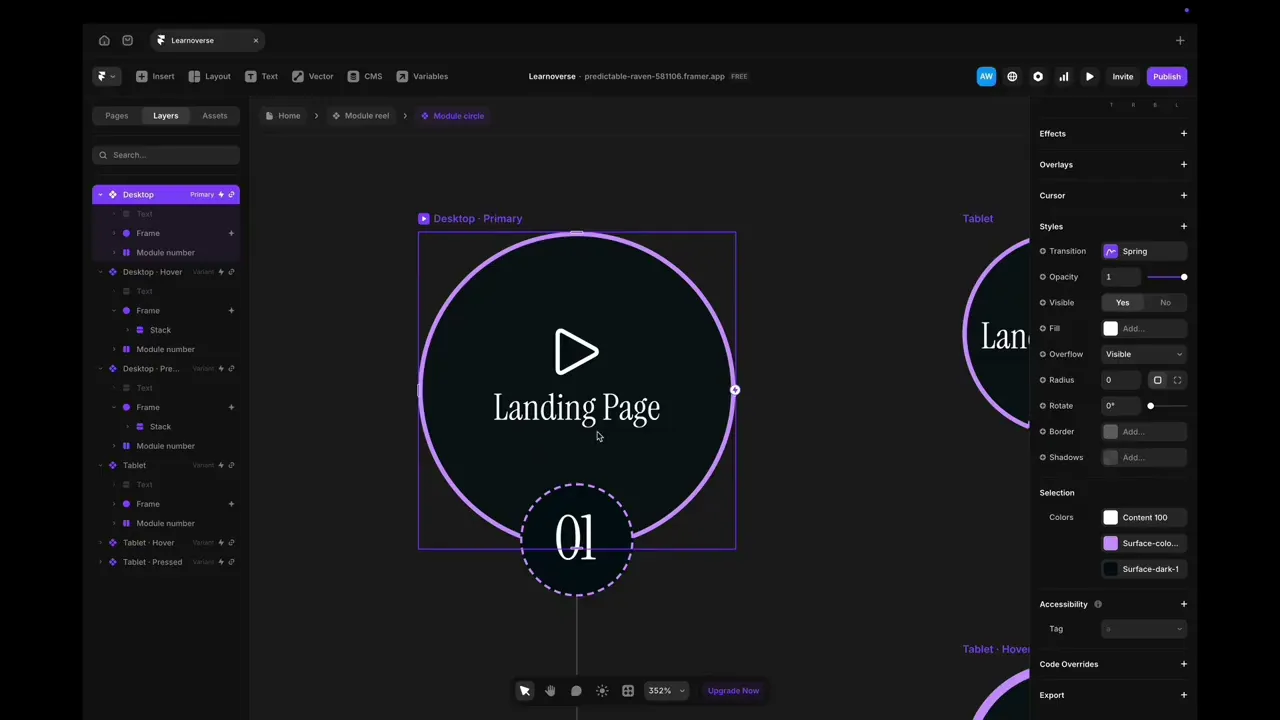
To update the size and interactive states of the circles themselves, double-click on any of the “Module circle” components, indicated by a purple diamond shape in the left panel on Framer, and edit here.
Once you’re on the module circle component page, you’ll see there are two variants; 1 for desktop and one for tablet.
You will also see that each variant has the “default”, “hover” and “pressed” states.
It’s important to note that the primary circle will update all other variants, but updating the hover or pressed states will only affect these variants.
Head over to the right properties panel to change any colours or text styles.
To change the main hero image, head back to the homepage, on the left panel, expand any hidden layers to see where to edit the image.
Alternatively, you can simply click the image on the home page itself, head over to the right properties panel, scroll down to “Fill” and click the image. Here, you can easily upload a new image to customise your hero.
To edit the text areas, click on the text areas, either directly on the page or in the left panel, and head over to the right panel to make edits to styling, effects and colours.