Curriculum
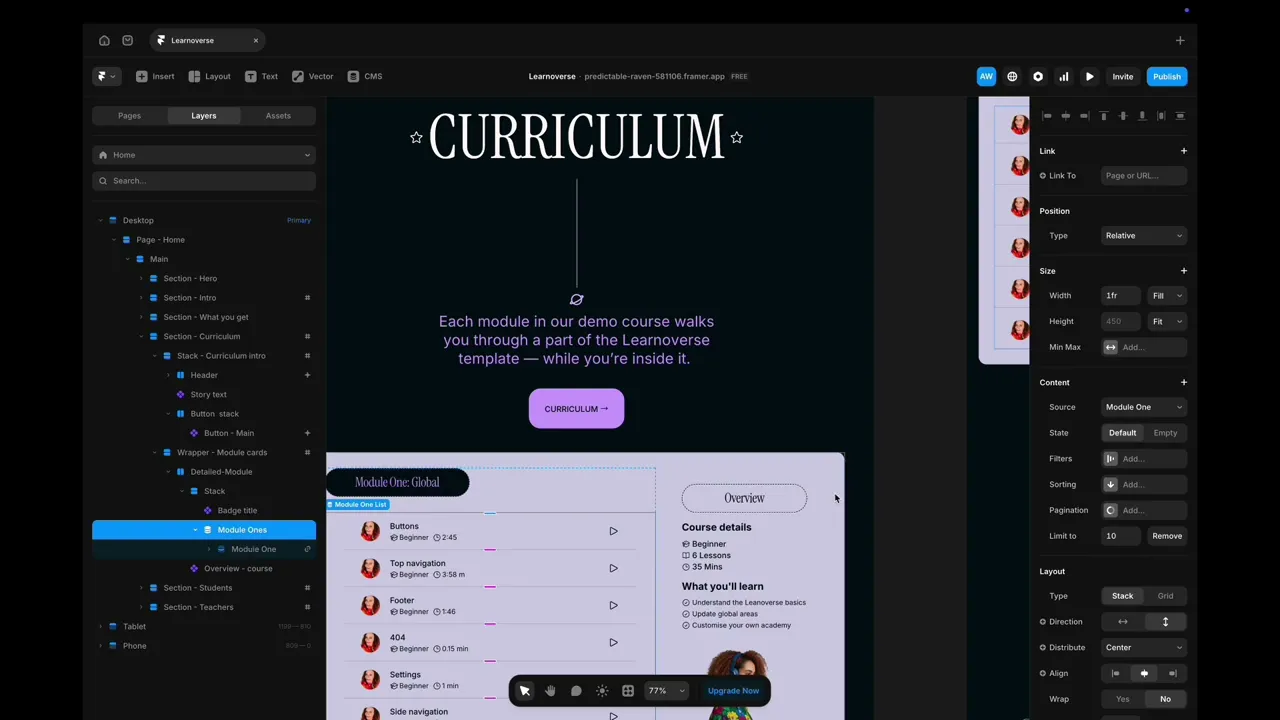
This lesson shows how to customise the Curriculum section on the homepage in Framer: edit titles and styles in the layers panel, swap displayed modules via the CMS source dropdown, and update lesson details directly in the CMS—where changes sync automatically across the site.

Learnoverse Instructor / Senior Product Designer
Allie Walters
Beginner
2:58
Lesson Transcript
Hello and welcome to this “landing page” tutorial, part of a 5-module series on how to use the Learnoverse template.
This tutorial dives into how to edit the “Curriculum” section on the homepage.
Each of the lessons has been carefully crafted so that you can dip in and out as and when you need the relevant support.
In this “landing page” tutorial, you’ll learn how to customise the Curriculum section on the homepage for your own Learnoverse.
Let’s get into how.
Head over to the left panel in Framer and ensure you are on the “Home” page.
Click the “layers” panel at the top to expand all layers and see how this section has been structured.
Click the “Badge title” component, and head over to the right panel to edit the title name and colours.
To change the module that’s pulled through onto the card, click “Modules One” in the left panel.
Next, head over to the properties panel on the right, and look for Source.
Here you’ll find a dropdown of all the available modules to pull through onto the card dynamically from the CMS.
To edit these, you will need to head over to your CMS Collection.
You can head over to your CMS collection by clicking on the small “CMS” collection icon at the top Framer panel. It’s a small icon showing stacked circles.
Here you will find all of the Learnoverse modules and their associated lesson pages.
We will delve deeper into the CMS in a later tutorial, but for now, just know that you can edit any titles that pull through onto the curriculum section of the homepage here.
Simply click the module you would like to edit, and you will see all of the lessons.
Choose the lesson you would like to edit, and then move across until you see “Time required”, “Level”, and “Lesson title”.
You can directly edit the time, level, and lesson title here. These are all the fields that correspond with the curriculum page, and the desktop open module side navigation.
You can also edit fields by using the “Toggle view” button and then go to the field you’d like to edit.
Any edits to fields connected to these pages will automatically update.
That’s it for now.
For more information on how to edit the Framer CMS, text styles, colours, padding, shapes, and scroll sections, head over to the official Framer Academy resources. I’ve popped the link on this Learnoverse lesson page.
Start customising your landing page Curriculum section now, and I’ll see you in the next tutorial.