Footer
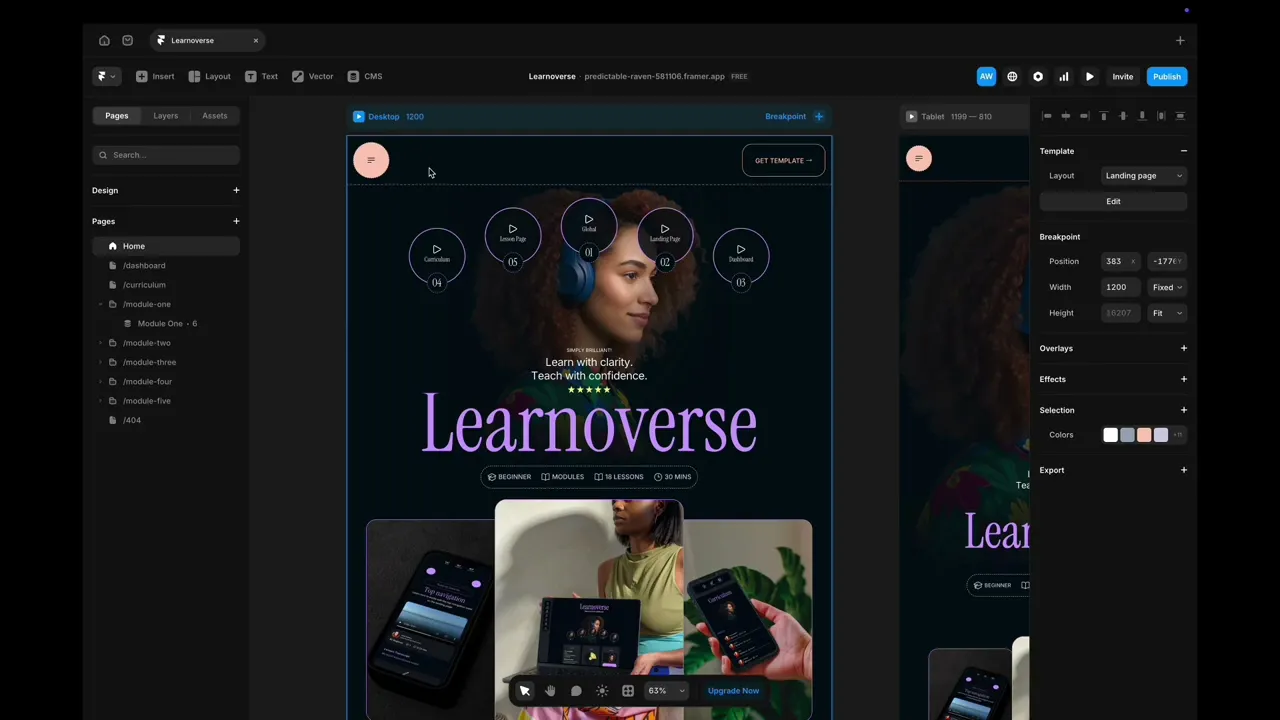
This lesson shows how to customise the footer in Framer: open the layout template, select the Footer layer, and quickly edit links and destinations via the layers and right-hand properties panel.

Allie Walters
Learnoverse Instructor / Senior Product Designer
Beginner
1:46
Lesson Transcript
Hello and welcome to the third tutorial in this 5-module series on how to use the Learnoverse template.
Each of the lessons has been carefully crafted so that you can dip in and out as and when you need the relevant support.
In this “Footer” tutorial, you’ll learn how to customise the footer for your own Learnoverse.
Framer has made it super easy for you to edit designs, so let’s get into how.
The first thing to do is to head over to the homepage.
Once you’re on the homepage, double-click either the top navigation bar or scroll down to the footer area and double-click here to view the layout template.
Learnoverse uses a layout template on the landing page, which you can easily repeat should you wish to expand your Leanoverse pages.
On the Learnoverse layout page, you will see the top navigation component and the footer.
Head over to the layers panel on the left and click the “Footer” layer.
Here you’ll see various stacks, which, when expanded, will show you the links.
To edit these links, simply click on the individual links to edit, or head over to the right panel to change the links themselves. If you click on the top of the right panel, you will see “Link”. Click on the link field itself to reveal a dropdown menu of pages or sections to link to.
That’s it!
For more information on Links, editing text styles, colours, and padding, please head over to the official Framer Academy resources. I’ve popped the link on this Learnoverse lesson page.
Start customising your Footer, and I’ll see you in the next tutorial.