
Learnoverse Instructor / Senior Product Designer
Allie Walters
Beginner
3:09
Lesson Transcript
Welcome to this "Lesson page” tutorial, part of a 5 module series on how to use the Learnoverse template.
In this "Lesson page” tutorial, you’ll learn how to customise this section for your own Learnoverse.
For general information on how to use the Framer CMS, please take a look at the Framer CMS resources on their Academy.
Let’s get into how to edit the Learnoverse template.
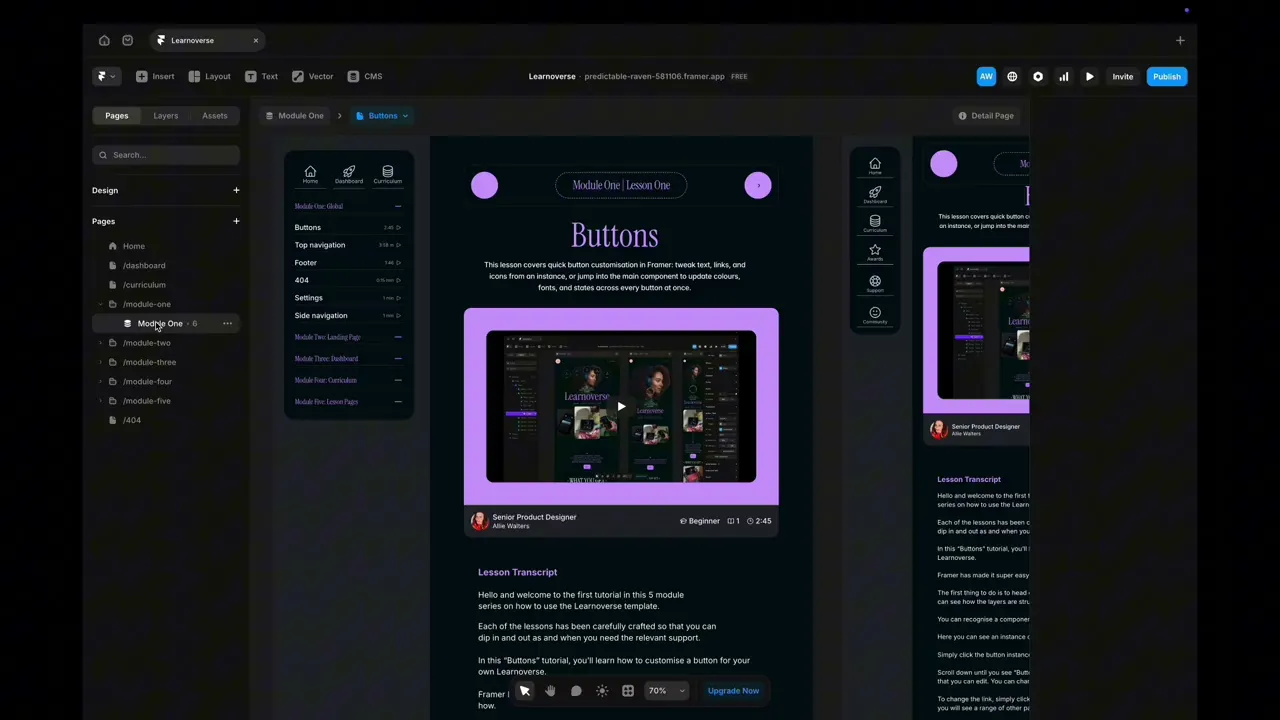
Head over to the left panel in Framer. Below the curriculum page, you will see the module pages, which are each connected to the Framer CMS.
Each of these pages has been created as a CMS “detail page”. The CMS detail page is connected to that specific collection and fields in the CMS.
You can identify the CMS detail page because it has a stack of circles and is labelled, for example, “Module one” with a small number beside it indicating the number of lessons.
Each CMS detail page (labelled module one, two, three, four or five) houses the design for all lessons in that section.
It’s important to note that this design will then be applied to all the pages in the module or the collection it is connected to.
The beauty of this is that you only have to design your lesson pages or tutorials once for each collection.
It’s also important to note that each of these collections, or modules, is connected to Framer CMS fields.
I’ll go over Framer Fields in the next tutorial.
To make edits to each of the CMS detail pages “Module one, etc”, head to the page you’d like to edit in the left-hand panel.
Click the icon of stacked circles indicating it’s connected to a collection.
The majority of these elements will be dynamically connected to fields in the collection, so you don’t need to worry about what text is displayed here, as it will change, so long as each field remains connected.
This includes videos, which are uploaded to each lesson in each collection.
To change elements on the CMS detail page, such as background colours, icons, shapes, and circles, you can edit these by simply clicking on each element and heading over to the right-hand properties panel to edit.
As I mentioned earlier, Framer has a really good short CMS tutorial, where you’ll learn most things you need to know about the Framer CMS if you’d like to push the template further.
I’ve popped the link on the resources page and highly recommend you watch this if you want to make substantial changes to the template.
That’s it for now.
For more information on how to edit text styles, colours, padding, shapes, and scroll sections, head over to the official Framer Academy resources. I’ve also popped the link on this Learnoverse lesson page.
Start customising your Lesson page detail pages now, and I’ll see you in the next tutorial.