
Learnoverse Instructor / Senior Product Designer
Allie Walters
Beginner
2:21
Lesson Transcript
Welcome to this "Lesson page Fields” tutorial, part of a 5-module series on how to use the Learnoverse template.
In this "Lesson page fields” tutorial, you’ll learn how to customise this section of the template for your own Learnoverse.
Framer also offers a really good short lesson on how to use the Framer CMS, including collections, CMS detail pages, and Fields.
Let’s get into how Fields work and why they are important to your Learnoverse template.
Head over to the top panel in Framer, where you’ll find the CMS button. Click on this icon that looks like stacked circles.
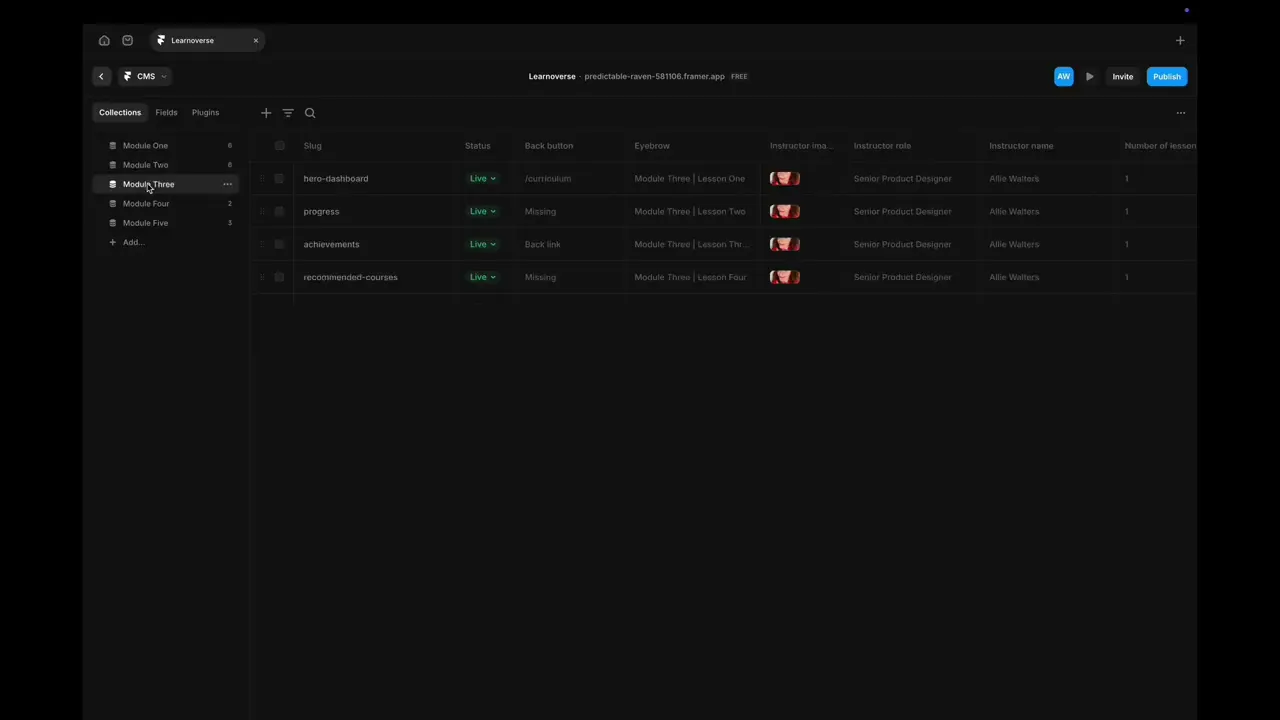
Once you get into the CMS part of the template, you’ll see modules 1 to 5 under the collections tab.
Click on module one to see how this works.
Once you’re on module one, click the ”Fields” tab at the top.
On the left-hand side, you’ll see a list of fields, which are connected to this module.
In the middle of the page, you’ll see the pages that are connected to these fields, which is one of the pages you’re currently on.
If you scroll across, you’ll see all the fields in more detail and can edit anything from here by clicking on the field.
You can add new fields by clicking the plus button next to the Fields tab in the left-hand column.
It’s important to note that these fields need to be designed on the module detail page and connected to the respective fields by choosing “set variant.”
To preview how your fields are collected onto the Learnoverse pages, go to the modules page you’d like to view.
Then press the play button at the top right in Framer and in the left-hand sidebar on these Learnoverse module pages, click the page you’d like to see.
Alternatively, you can use the previous and next buttons at the top of the Learnoverse module page.
That’s it for now.
For more information on how to edit text styles, colours, padding, shapes, and scroll sections, head over to the official Framer Academy resources. I’ve also popped the link on this Learnoverse lesson page.
Start customising your Fields in the Learnoverse CMS now, and I’ll see you in the next tutorial.