
Learnoverse Instructor / Senior Product Designer
Allie Walters
Beginner
1:25
Lesson Transcript
Welcome to this "Collections” tutorial, part of a 5-module series on how to use the Learnoverse template.
In this "Collections” tutorial, you’ll learn how to customise this section of the template for your own Learnoverse.
Framer also offers a really great short lesson on how to use the Framer CMS, including collections, CMS detail pages, and Fields.
Let’s get into how Collections work and why they are important to your Learnoverse template.
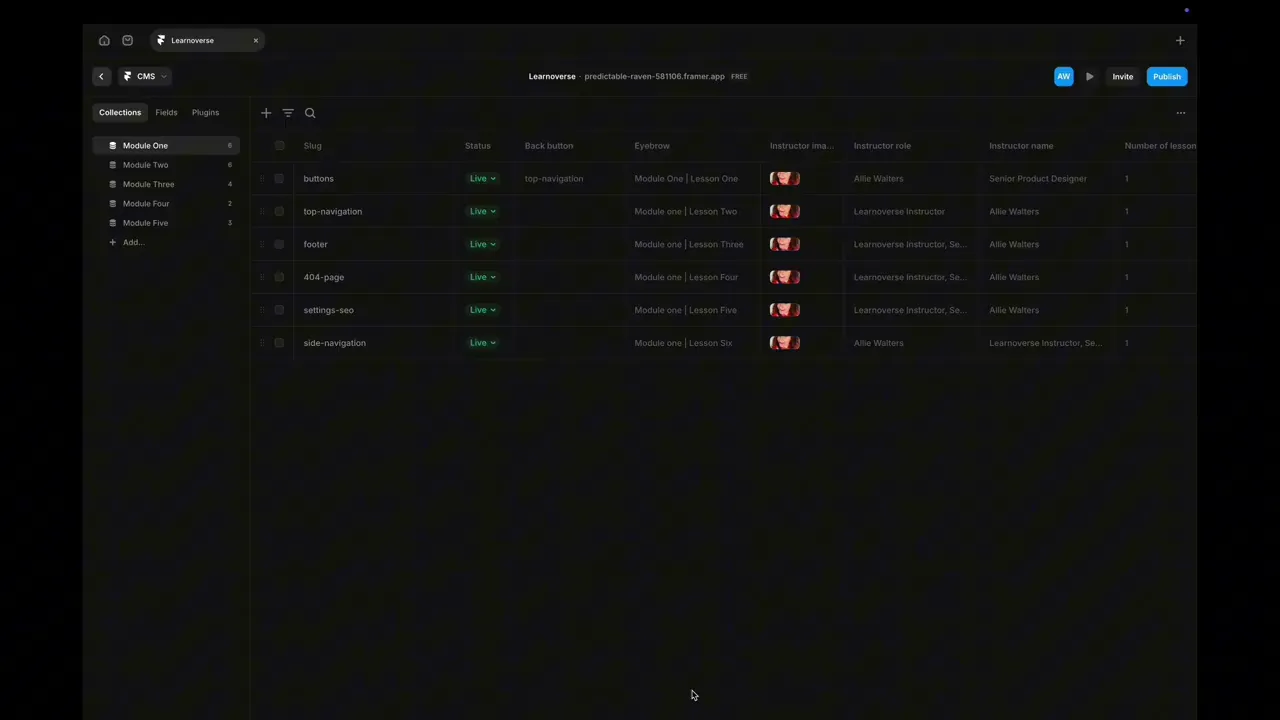
Head over to the top panel in Framer, where you will find the CMS button. Click on this icon that looks like circles stacked.
Once you get into the CMS part of the template, you’ll see modules 1 to 5 under the collections tab.
Collections are the area where all of your fields are linked, and they are also connected to the module detail page in the Learnoverse modules one, two, three, four, and five templates.
You can rename the collection name by right-clicking on the module you’d like to rename and clicking “rename.”
You can also delete modules you don’t require or duplicate them.
Don’t forget to hit the “publish” button top left to ensure these changes are made.
As I mentioned earlier, Framer has a really good short CMS tutorial, where you’ll learn most things you need to know about the Framer CMS if you’d like to push the template further.
That’s it for now.
For more information on how to use Framer, head over to the official Framer Academy resources. I’ve also popped the link on this Learnoverse lesson page.
Start customising your CMS collections now, and I’ll see you in the next tutorial.