Courses
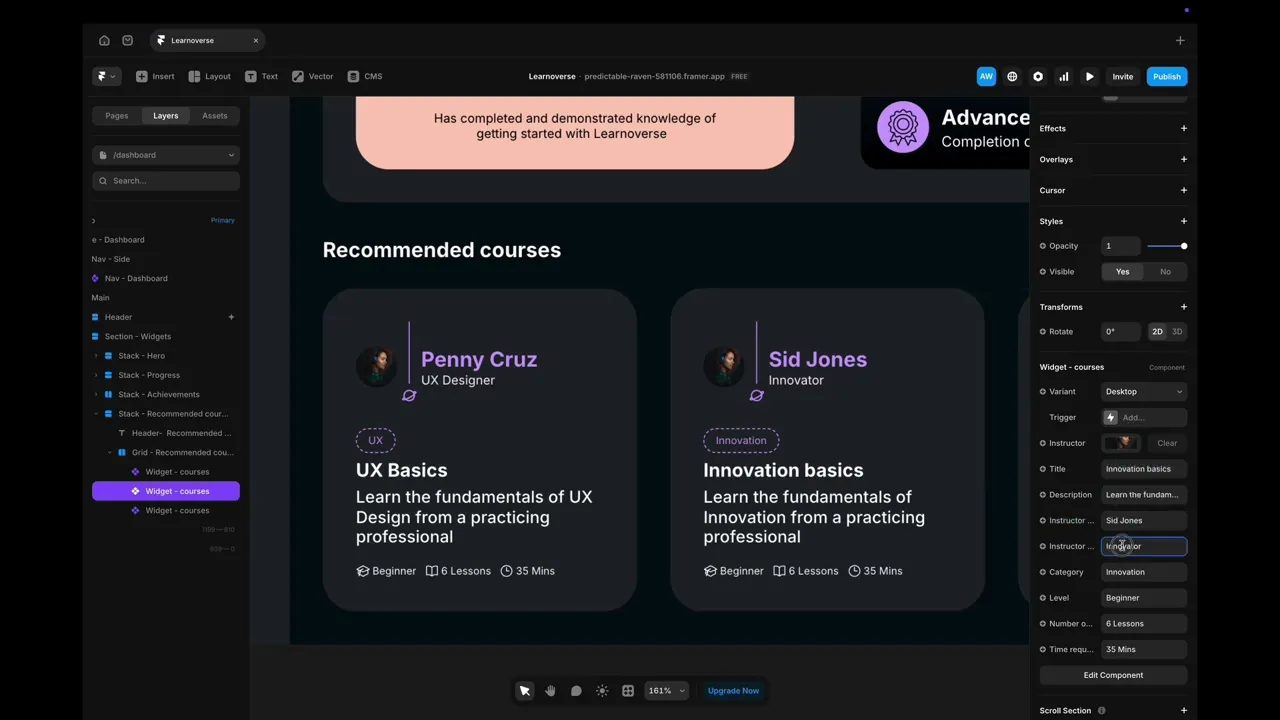
This lesson covers customising the dashboard recommended section in Framer: edit course card content from the properties panel, or double-click the component to update styles like colours and typography across all instances.

Learnoverse Instructor / Senior Product Designer
Allie Walters
Beginner
1:16
Lesson Transcript
Welcome to this “dashboard recommended” tutorial, part of a 5-module series on how to use the Learnoverse template.
In this “dashboard recommended” tutorial, you’ll learn how to customise this component for your own Learnoverse.
Let’s get into how.
Head over to the left panel in Framer and ensure you are on the “Dashboard” page.
Click the “layers” panel at the top to expand all layers and see how this section has been structured.
You will see the component “ Widget - courses”, indicated by a purple diamond shape.
To edit each of the three “ Widget - courses” instances of the main component, click on the one you’d like to edit and head over to the right panel where you can edit the text.
To edit the component design itself, such as the colours and text styles, double-click and make changes there.
That’s it for now.
For more information on how to edit text styles, colours, padding, shapes, and scroll sections, head over to the official Framer Academy resources. I’ve popped the link on this Learnoverse lesson page.
Start customising your Dashboard recommended section now, and I’ll see you in the next tutorial.