Curriculum hero
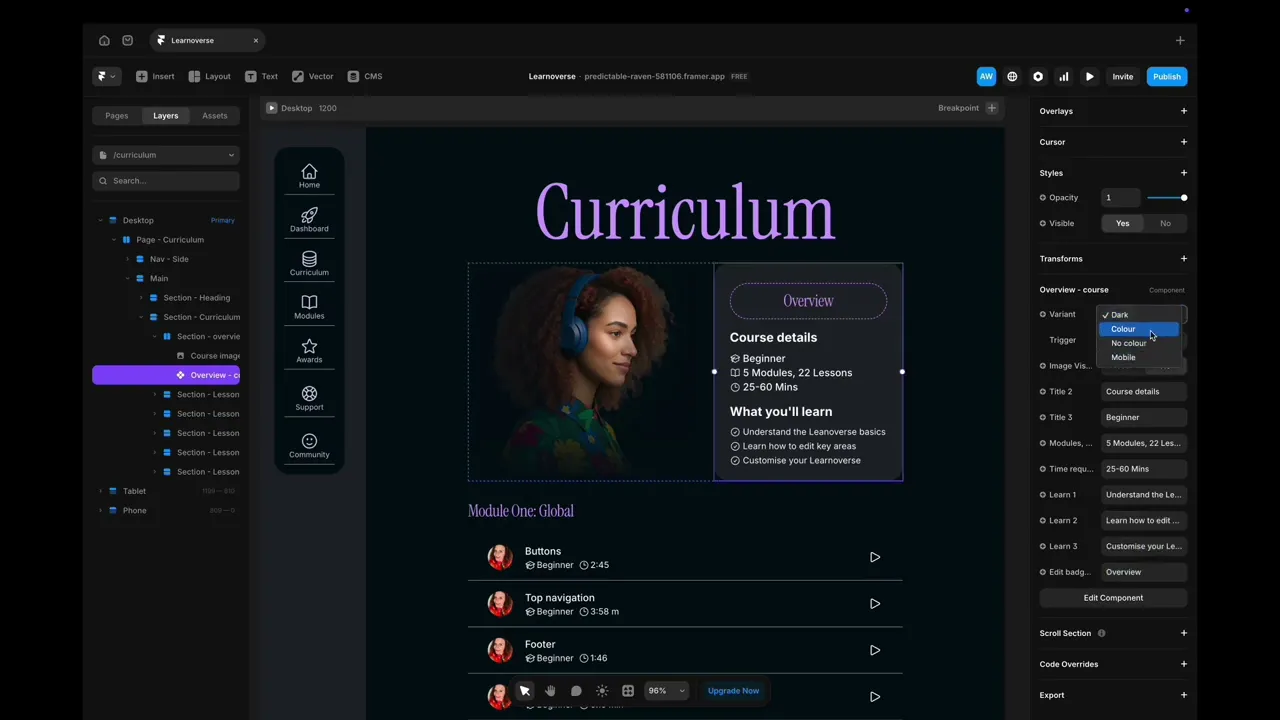
This lesson covers customising the curriculum hero in Framer: edit course info and variants in the Overview component, tweak its design globally via the component page, and update the header text and image from the properties panel. Please note that Modules vary in length depending on the page complexity, with shorter focused modules for final setup and CMS customisation.

Learnoverse Instructor / Senior Product Designer
Allie Walters
Beginner
1:27
Lesson Transcript
Welcome to this "curriculum hero” tutorial, part of a 5-module series on how to use the Learnoverse template.
In this "curriculum hero” tutorial, you’ll learn how to customise this section for your own Learnoverse.
Let’s get into how.
Head over to the left panel in Framer and ensure you are on the “Curriculum” page.
Click the “layers” panel at the top to expand all layers and see how this section has been structured.
You’ll see the component “Overview - course”, indicated by a purple diamond shape. You can edit the text in this component by heading to the right-hand panel and editing the fields under “Overview - course”.
You can also choose different colour versions by selecting the variant drop-down.
To edit the main component, double-click the “ Overview - course” component and edit directly on the component page.
It’s important to note that any changes made may affect the other components.
The curriculum header and picture can be edited by clicking on each element and heading over to the right-hand panel to edit these.
That’s it for now.
For more information on how to edit text styles, colours, padding, shapes, and scroll sections, head over to the official Framer Academy resources. I’ve popped the link on this Learnoverse lesson page.
Start customising your Curriculum hero section now, and I’ll see you in the next tutorial.