Overview
This lesson covers customising the curriculum overview in Framer: lesson sections auto-update from CMS fields, while you can tweak the Lesson Index Nav component’s design and variants, and connect new elements to CMS data for dynamic content.

Learnoverse Instructor / Senior Product Designer
Allie Walters
Beginner
2:22
Lesson Transcript
Welcome to this "curriculum overview” tutorial, part of a 5-module series on how to use the Learnoverse template.
In this "curriculum overview”” tutorial, you’ll learn how to customise this section for your own Learnoverse.
Let’s get into how.
Head over to the left panel in Framer and ensure you are on the “Curriculum” page.
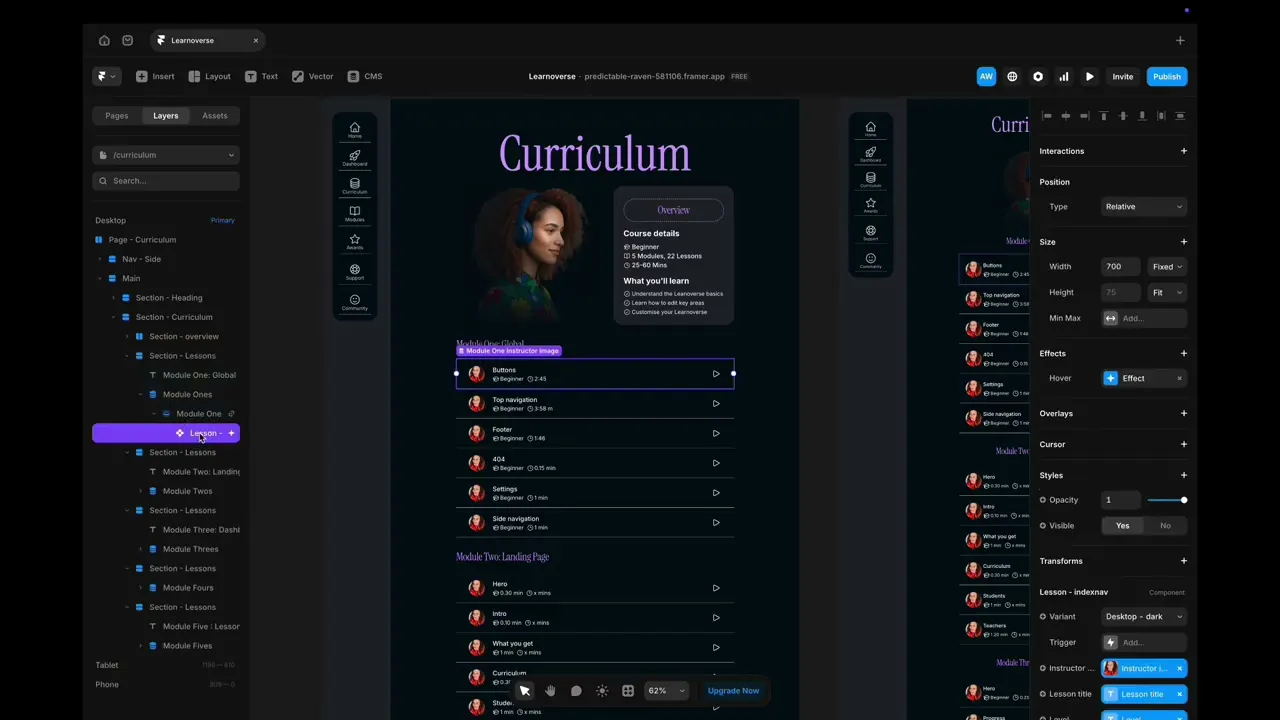
Click the “layers” panel at the top to expand all layers and see how this section has been structured.
You will see that there are 5 sections entitled “Section-Lessons.”
These titles are connected to the Framer CMS, so whenever you make a change to your lesson title, level, or required time, they will automatically update here.
We will dig a little deeper into how these are set up in module 5. For now, these are the important things to know.
You can head over to the side navigation tutorial in module one to learn how to edit the side navigation.
You can change the design of the component “Lesson-indexnav” by double-clicking on this component.
Once you’re on the “Lesson-indexnav” component page, you’ll see there are two variants, one light and one dark variant.
You can change the colours of these, but it’s important to note that the light version is on the curriculum section of the landing page, so ensure this colour stands out against that page.
To change the specific fields that appear on this component, you first need to add text, and then connect it to a field in the CMS.
To connect to a CMS field, click on your element, then head over to the right panel and click the plus button next to the content. You then need to click “set variant” to connect your element to the CMS.
Framer has a really good CMS tutorial, where you’ll learn most things you need to know about the Framer CMS. I’ve popped the link on the resources page and highly recommend you watch this if you want to make substantial changes to the template.
That’s it for now.
For more information on how to use Framer, head over to the official Framer Academy resources. I’ve also popped the link on this Learnoverse lesson page.
Start customising your Curriculum overview section now, and I’ll see you in the next tutorial.